How Traceroute Works (And How to Read It Without Guessing)
Traceroute shows the path packets take through the network.

Key Takeaways
- Timeouts at intermediate hops are common and not always a problem.
- Look for where latency increases and stays high afterwards.
- Use traceroute comparisons (different networks) to isolate the issue.
What Traceroute Measures (Path, Not “Speed”)
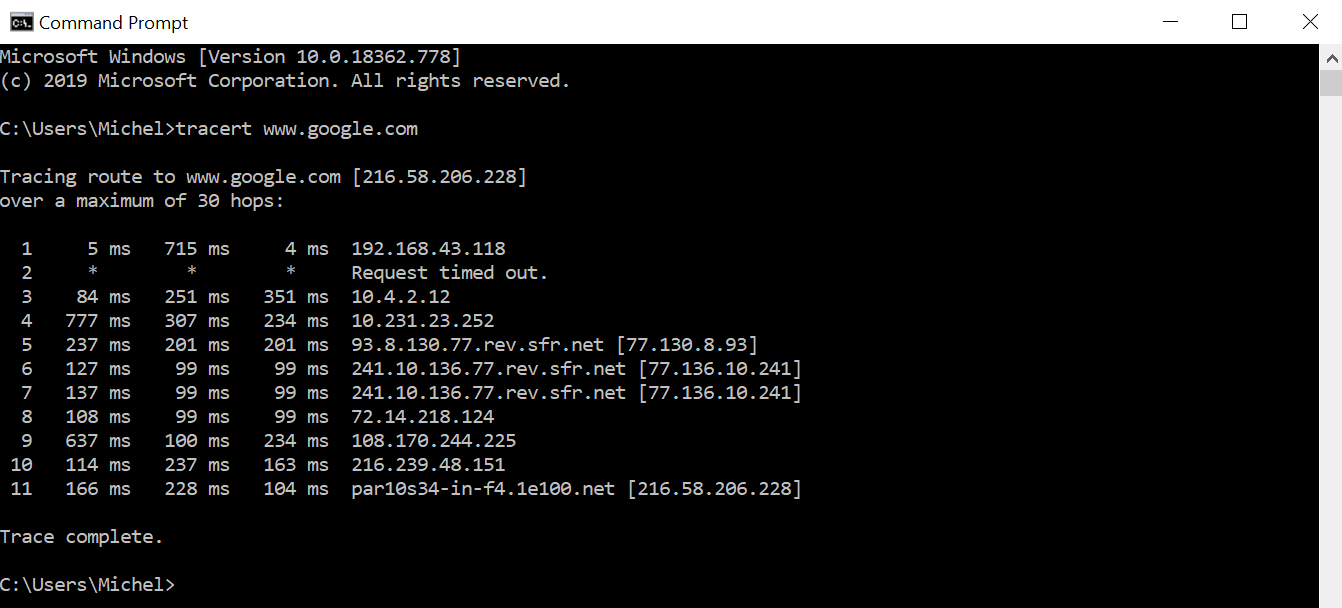
Traceroute sends packets with increasing TTL (time-to-live) values so routers along the path reply. This reveals: - The sequence of hops - Approximate round-trip time to each hop
It does not directly measure bandwidth.
Why Hops Time Out (And Why It Can Be Normal)
Many routers: - Rate-limit ICMP responses - De-prioritize traceroute traffic - Drop probe replies while still forwarding real traffic normally
So seeing * * * at a hop does not automatically mean failure.
The Pattern That Usually Matters
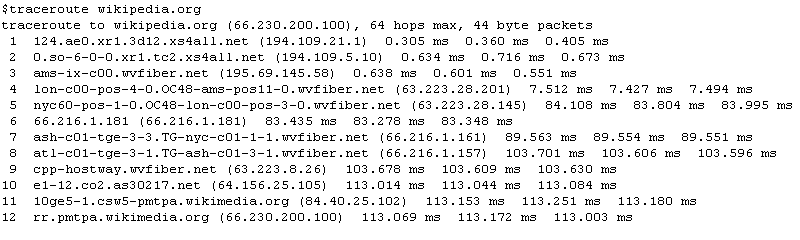
These patterns are more meaningful: - Latency jumps at hop N and stays high for all later hops. - Packet loss appears at hop N and continues to the destination.
If loss only appears at one middle hop but later hops are fine, that hop may simply be ignoring probes.
Common Use Cases
- “My connection to a game server is lagging.”
- “A site is slow or unreachable from my ISP.”
- “It works on mobile but not on home internet.”
Traceroute helps you identify whether the problem is: - local network - ISP edge - intermediate transit - destination network
Comparing Traceroutes (The Most Useful Trick)
Run traceroute from: - home Wi‑Fi - mobile hotspot - (optional) a VPN
If the path changes and performance improves, the issue is likely routing/peering rather than your device.
Sharing Traceroute Safely
Traceroute can reveal: - your approximate ISP routing - internal IPs in some setups
When sharing publicly: - remove private/internal hops if they contain sensitive identifiers - avoid publishing full traces tied to your personal identity
Practical Implications in Real Systems
If traceroute shows a problematic hop or destination IP, IPVerdict can help you understand: - which organization/ASN owns that hop - whether it looks like transit/hosting infrastructure
This is useful for support reports: - “The issue begins when traffic enters ASN X” (high-level)
Common Misunderstandings
Q1: Why do I see timeouts but the site still works? Routers can forward traffic while refusing to reply to probes.
Q2: Can traceroute prove where the fault is? It suggests where issues start, but it’s not always definitive.
Q3: Why is the destination IP different from yesterday? CDNs, anycast, and load balancing can change endpoints.
Q4: Is more hops always worse? Not necessarily. Hop count doesn’t directly equal performance.
Q5: Should I run traceroute to random targets? Only to destinations you’re troubleshooting; don’t scan indiscriminately.
Limitations
- Some networks block traceroute probes.
- Paths can vary over time (routing changes).
- Traceroute to a domain may hit a CDN edge, not the origin.
Disclaimer
The information in this guide is provided for educational and diagnostic use. Network behavior can vary by environment, configuration, and data sources, so results should be treated as informative signals rather than definitive proof.
Conclusion
Understanding these fundamentals helps you interpret network signals more confidently and troubleshoot issues with fewer false assumptions.