Latency, Jitter, and Packet Loss: What They Mean for Real Users
Latency = delay (responsiveness).
Key Takeaways
- Jitter = variation in delay (stability).
- Packet loss = missing data (reliability).
- Wi‑Fi problems often look like “internet problems.”
- You can often improve stability by reducing Wi‑Fi interference, using Ethernet, or changing network path.
Latency, Jitter, Packet Loss: The Everyday Meaning
Latency Time for data to travel to a destination and back. You feel it as: - Slow response in games - Laggy remote desktop
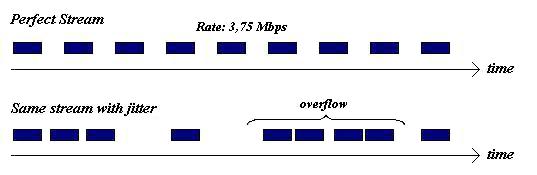
Jitter How much latency varies over time. You feel it as: - Choppy audio - Unstable calls
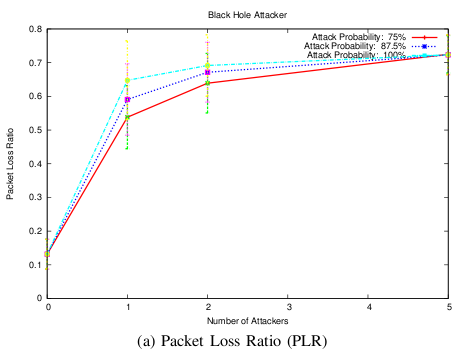
Packet loss Some packets never arrive. You feel it as: - Drops, freezes, stutters - Retransmissions (especially visible on TCP)
What “Good” Usually Looks Like (Non-Absolute)
These are rough, not promises: - Calls/meetings: low jitter, near‑zero packet loss matters most - Gaming: low latency + low jitter matters - Streaming: loss hurts more than latency (buffering can hide latency)
If you see consistent packet loss, fix that first.
Common Causes (The Real-World List)
- Wi‑Fi interference or weak signal
- Congestion (busy networks)
- Bad routing or peering between networks
- ISP issues or overloaded local equipment
- VPN overhead (sometimes helps routing, sometimes adds latency)
Why Speed Tests Don’t Tell the Whole Story
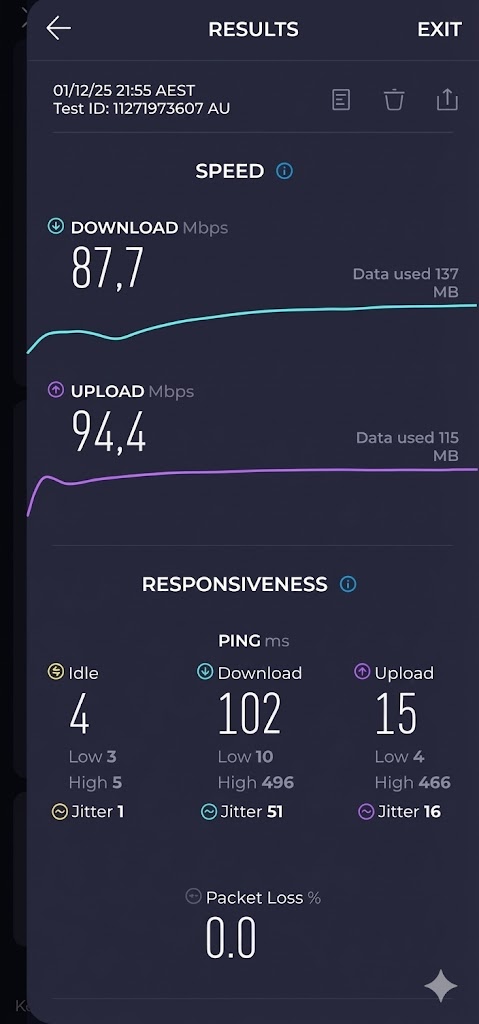
Speed tests measure throughput. Your problem might be: - jitter spikes - intermittent loss - queueing delay
You can have high download speed and still have terrible call quality.
Practical Fixes You Can Try
Start simple: 1. Move closer to the router or access point. 2. Switch to Ethernet for the device that needs stability. 3. Change Wi‑Fi band (2.4 GHz vs 5 GHz) depending on distance/interference. 4. Restart router/modem. 5. Reduce background uploads/downloads. 6. If the issue is destination-specific, try changing network path (mobile data or VPN).
VPNs: Why They Sometimes Help (Or Hurt)
A VPN can: - Improve routing to a destination - Avoid local ISP congestion
But it can also: - Add overhead - Increase latency - Reduce MTU and trigger issues
Treat VPNs as a troubleshooting tool, not a guaranteed fix.
Practical Implications in Real Systems
When you troubleshoot stability, it helps to know: - Whether your public IP/ASN changes between networks - Whether the endpoint is in a CDN/cloud network
Use IPVerdict to compare: - Wi‑Fi vs mobile - Direct vs VPN (different exit networks)
Common Misunderstandings
Q1: Which is worse—jitter or latency? For calls, jitter is often worse. For games, latency matters more.
Q2: Can a router cause packet loss? Yes—overloaded or unstable routers can drop packets.
Q3: Why is Wi‑Fi worse than Ethernet? Wi‑Fi shares radio spectrum with interference and contention.
Q4: Can my ISP fix jitter? Sometimes, especially if it’s due to congestion or line quality.
Q5: How do I know if it’s my network or the destination? Compare on another network (mobile) and see if the problem follows.
Limitations
- Some apps adapt to network problems and hide them.
- Wireless conditions vary minute to minute.
- A “good” ping doesn’t guarantee good jitter/loss.
Disclaimer
The information in this guide is provided for educational and diagnostic use. Network behavior can vary by environment, configuration, and data sources, so results should be treated as informative signals rather than definitive proof.
Conclusion
Understanding these fundamentals helps you interpret network signals more confidently and troubleshoot issues with fewer false assumptions.